What's inside
As an Amazon Associate I earn from qualifying purchases. This post may contain affiliate links at no extra cost to you.
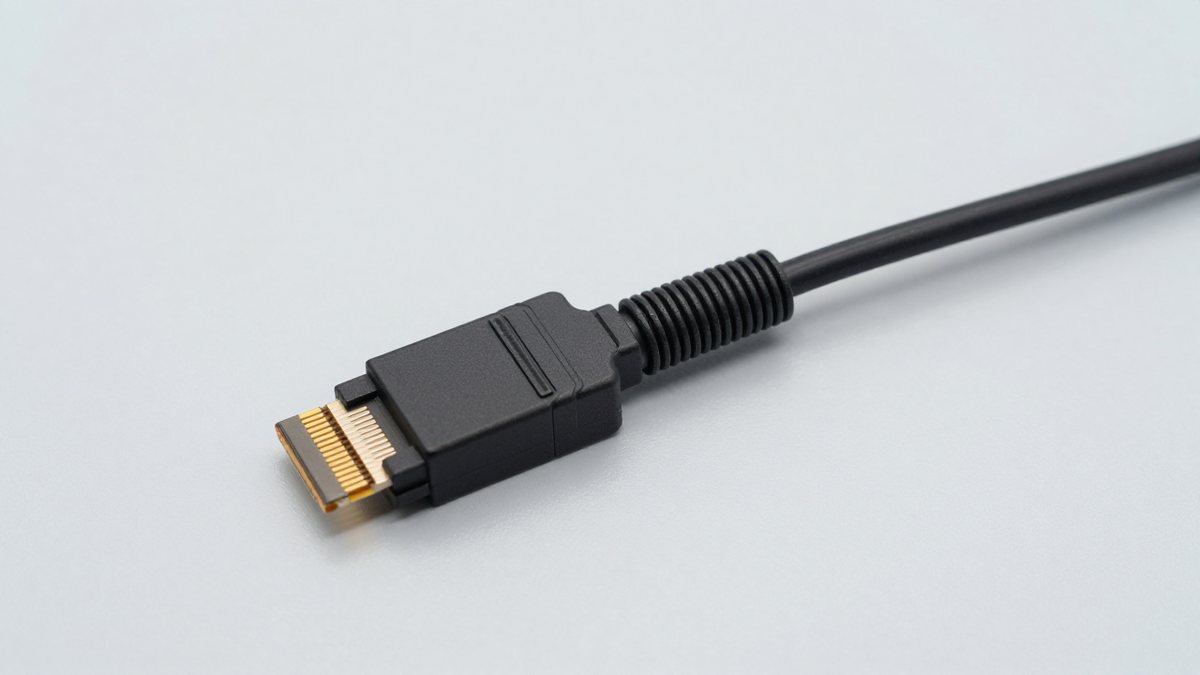
The best PCIe riser cables for vertical GPU mounting are the Lian Li PW-PCI-420 for most PCIe 4.0 builds, a certified PCIe 5.0 x16 riser from LINKUP or a similar specialist manufacturer for new high-end platforms, and the Cooler Master PCIe 4.0 Riser Cable V2 when case compatibility and value matter most.
A riser cable is not merely an extension lead: it carries a high-speed PCI Express signal through a cable that may be sharply bent, compressed behind a graphics card, or routed close to power wiring. The right choice depends on your motherboard generation, GPU interface, case mounting slots, cable path, and how much troubleshooting you are willing to do.
As an Amazon Associate we earn from qualifying purchases at no extra cost to you.


Our Top Picks

Best PCIe riser cables by situation
| Situation | Best choice | Why | Typical length | General market range |
|---|---|---|---|---|
| PCIe 4.0 gaming PC and standard vertical mount | Lian Li PW-PCI-420 | Flexible, shielded design with reliable Gen 4 support | 200–600 mm, depending on version | $35–$70 |
| Cooler Master case with a compatible vertical bracket | Cooler Master PCIe 4.0 Riser Cable V2 | Good fit with supported Cooler Master mounting hardware | 165–300 mm, depending on version | $35–$60 |
| PCIe 5.0 motherboard and latest high-end GPU | LINKUP Ultra PCIe 5.0 x16 riser | Designed for Gen 5 signal integrity and demanding x16 links | 100–200 mm, depending on model | $70–$120 |
| Long cable route or unusual case layout | Shielded PCIe 4.0 x16 cable from a specialist cable maker | More length options than many case-branded cables | 200–600 mm | $40–$90 |
| Older motherboard or troubleshooting build | Quality PCIe 3.0 x16 riser | Lower cost and generally easier signal requirements | 150–300 mm | $20–$45 |
PCIe generation and bandwidth: choose for the weakest link
PCIe 3.0 x16 provides approximately 15.8 GB/s of bidirectional raw data bandwidth, PCIe 4.0 x16 approximately 31.5 GB/s, and PCIe 5.0 x16 approximately 63 GB/s. These are interface figures rather than guaranteed game-performance improvements, but they explain why a marginal riser can cause crashes, black screens, or a system that falls back to a slower link.
A PCIe 4.0 riser is usually the sensible match for a PCIe 4.0 motherboard and GPU. A PCIe 5.0 GPU can operate on a PCIe 4.0 link if the motherboard and firmware support that mode, but the system may need to be manually configured to Gen 4. Conversely, a PCIe 5.0 riser does not turn a PCIe 4.0 motherboard into a Gen 5 platform.
For a PCIe 3.0 system, a Gen 3 cable is adequate. However, buying a good Gen 4 cable can make sense if you expect to reuse it in a future build. Avoid treating “PCIe x16 compatible” as proof of maximum Gen 4 or Gen 5 operation; the product must explicitly state the supported generation at x16.
Head-to-head: Lian Li, Cooler Master, and LINKUP
Lian Li PW-PCI-420
The PW-PCI-420 is a strong all-round choice for PCIe 4.0 vertical GPU installations. Its appeal is the balance between a relatively flat, flexible cable structure and the shielding needed for a full-speed x16 link. It is particularly suitable when the GPU is close to the motherboard but the cable still needs to turn through a side channel.
Check the exact length before ordering. A cable that is too short pulls against both connectors; one that is excessively long can fold into a tight bundle behind the GPU. The cable is best routed in a broad curve rather than folded over itself.
Cooler Master PCIe 4.0 Riser Cable V2
Cooler Master’s Gen 4 riser is a practical match for cases and vertical GPU brackets designed around the company’s mounting system. The main advantage is predictable mechanical compatibility when the cable is being installed in a supported Cooler Master chassis.
It is not automatically the best option for every case. Confirm the orientation of the motherboard-side connector, the position of the PCIe slot opening, and whether your GPU’s cooler extends into the cable path. A case-specific bracket can matter more than a small difference in electrical specifications.
LINKUP Ultra PCIe 5.0 x16
LINKUP’s Ultra PCIe 5.0 range is aimed at builders who want a riser capable of maintaining a Gen 5 x16 connection. This is the most demanding category: Gen 5 signals are less forgiving of excessive length, tight bends, poor connector seating, and routing alongside noisy power cables.
Choose the shortest version that reaches comfortably. If your motherboard repeatedly negotiates at Gen 4 or produces intermittent display failures at Gen 5, first reseat the cable and set the slot to a fixed generation in firmware. If the issue remains, the cable, motherboard slot, or GPU may not maintain Gen 5 signal quality in that physical arrangement.
What to check before buying
- Generation: Confirm PCIe 3.0, 4.0, or 5.0 support at x16, not only x1 or x4.
- Length: Measure the route from the motherboard slot to the GPU position, then add only enough slack for a gentle curve.
- Connector orientation: Some cables use a straight motherboard connector; others use an angled connector. The wrong orientation can force a sharp bend.
- Shielding: Look for individually shielded conductors or a documented high-speed shielded construction, not just a decorative braided sleeve.
- Bend radius: Keep the cable in a broad arc. As a practical installation target, avoid bends tighter than roughly 25–35 mm unless the manufacturer gives a smaller minimum.
- Case clearance: Measure GPU thickness, the distance to the side panel, and the space below the graphics card. A vertical GPU can block intake airflow even when the riser fits.
- Connector retention: The plug should seat fully and remain supported without the cable pulling sideways on the motherboard slot.
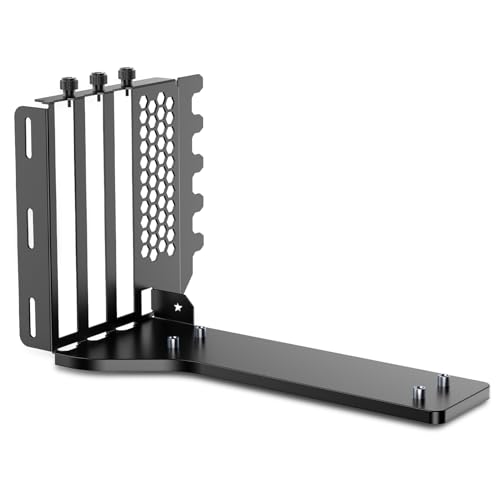
- GPU support: Use the case bracket or an anti-sag support. The riser should carry the signal, not the weight of the graphics card.
Worked sizing example
Suppose the horizontal route from the motherboard slot to the vertical bracket measures 145 mm. Add 20 mm for connector entry and 25 mm of installation slack:
145 mm + 20 mm + 25 mm = 190 mm minimum practical length.
A 200 mm cable is likely suitable if the path is unobstructed. A 150 mm cable is too short even though the measured gap appears close. A 300 mm cable may work, but the extra 110 mm must be stored without creating a tight fold or pressing against the GPU fans.
How to install a riser without creating instability
- Power down completely. Switch off the power supply and disconnect the AC cable before touching the motherboard or GPU.
- Install the cable without tension. Seat the motherboard-side connector squarely. Do not use the GPU or case bracket to pull the plug into alignment.
- Route the cable in one smooth curve. Keep it away from sharp sheet-metal edges, fan blades, and tightly packed power cables.
- Secure the graphics card mechanically. Tighten the bracket screws and add a support if the card is heavy or unusually long.
- Enter firmware setup after the first boot. If the system is unstable, set the slot manually to the cable’s supported generation instead of leaving it on Auto.
- Verify the negotiated link. Use your operating system’s hardware information or a GPU utility to check that the card is running at the expected generation and lane width.
- Stress-test before closing the case. Run a demanding game or GPU workload for at least 20–30 minutes, then inspect for black screens, driver resets, artifacts, or sudden link-speed changes.
Durability and ownership realities
The cable’s most vulnerable areas are the connector exits and the sections repeatedly folded during upgrades. Braided covering may resist abrasion, but it does not make a cable safe to kink. Avoid routing it under a motherboard edge or trapping it between a GPU backplate and the case.
There are no normal consumables to replace. Maintenance consists of removing dust from the connectors and checking that mounting screws have not loosened. Do not spray cleaner into a PCIe connector; use power disconnected and, if needed, a suitable electronics air blower while preventing fans from spinning freely.
If a previously stable system develops intermittent display loss, reseat both ends first. Then inspect for a partially inserted connector, a new obstruction pressing on the cable, GPU sag, or a firmware update that changed PCIe link behavior. Replacing a Gen 4 cable with a Gen 5 model will not fix a damaged slot or an incorrectly installed vertical bracket.
Final recommendation
For most vertical GPU builds, buy a short, shielded PCIe 4.0 x16 riser that matches the case bracket and leaves a gentle bend rather than choosing the longest or cheapest cable. The Lian Li PW-PCI-420 is the most broadly useful pick, while the Cooler Master PCIe 4.0 Riser Cable V2 is attractive for compatible Cooler Master cases. Choose a LINKUP Ultra PCIe 5.0 x16 or comparable certified Gen 5 cable only when your platform benefits from a Gen 5 connection and you can provide careful routing, firm GPU support, and adequate clearance.