What's inside
As an Amazon Associate I earn from qualifying purchases. This post may contain affiliate links at no extra cost to you.
The best AutoCAD and CAD laptops are Windows mobile workstations with a modern Core Ultra 7 or Ryzen 7 processor, 16GB RAM for 2D drafting, 32GB or more for 3D assemblies, and a dedicated GPU with at least 4GB of VRAM; the right tier depends more on drawing complexity than on the AutoCAD name alone.
As an Amazon Associate we earn from qualifying purchases at no extra cost to you.


Our Top Picks
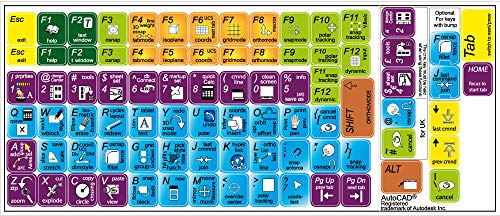
 AUTOCAD AUTODESK Keyboard Stickers Shortcuts Label for Computer11.5x13mm6 x 3 x 0.01 inches0.01 PoundsCheck on Amazon
Quick picks by type of CAD work
| Situation | Recommended laptop class | Minimum sensible specification | Typical market range in 2026 |
|---|---|---|---|
| Occasional 2D plans, schoolwork, and basic layouts | Business laptop with integrated graphics | Core Ultra 5 or Ryzen 5, 16GB RAM, 512GB SSD, 14–15.6-inch 1080p display | $650–$950 |
| Frequent 2D drafting and light 3D | Performance laptop or entry mobile workstation | Core Ultra 7 or Ryzen 7, 16–32GB RAM, RTX 4050-class GPU, 1TB SSD | $950–$1,500 |
| Professional 3D parts, assemblies, and rendering | Mobile workstation | Core i7/Core Ultra 7 or Ryzen 7, 32GB RAM, RTX 2000 Ada-class GPU or better, 1TB SSD | $1,700–$3,000 |
| Large assemblies, point clouds, simulation, and visualization | High-end mobile workstation | Core i9/Core Ultra 9 or Ryzen 9, 64GB RAM, 8GB-plus professional GPU VRAM, 2TB SSD | $2,800–$5,000-plus |
What matters most in an AutoCAD laptop
CPU: prioritize fast individual cores
AutoCAD remains responsive when zooming, editing dimensions, opening drawings, and regenerating many 2D operations on a processor with strong single-core performance. A current Intel Core Ultra 5 or 7, Intel Core i7, or AMD Ryzen 5 or 7 is generally sufficient for drafting. A higher core count helps with rendering, exports, simulation, and multitasking, but it does not automatically make every drawing command faster.
For demanding work, choose a processor in the 45-watt performance class rather than an ultra-thin laptop chip. The trade-off is weight, fan noise, and battery life. A six- to eight-core modern CPU is a practical target for most professional CAD users.
GPU: integrated graphics for 2D, dedicated graphics for 3D
Simple 2D drawings can run on modern integrated graphics, provided the laptop has enough RAM and current drivers. A dedicated GPU becomes worthwhile for shaded views, complex models, large assemblies, real-time visual styles, and rendering in applications such as Revit, SolidWorks, Fusion, or Blender.
For general-purpose performance laptops, an NVIDIA GeForce RTX 4050 or RTX 4060 is a strong value choice. For professional certification, driver stability, and specialized workstation support, consider an NVIDIA RTX professional GPU, such as the RTX 1000 Ada, RTX 2000 Ada, or a higher model. Professional graphics cards usually cost more and may have less gaming performance per dollar, but their certified drivers can matter in a workplace environment.
RAM: the upgrade that prevents slowdowns
Use 16GB as the practical floor for new purchases. It is adequate for 2D AutoCAD, browser tabs, office applications, and moderate drawings. Choose 32GB if you regularly open several drawings, use external references, work in 3D, or run CAD alongside rendering, spreadsheets, and communication software.
Large assemblies, point clouds, virtual machines, and BIM coordination can justify 64GB. Check whether the laptop has accessible SODIMM slots. Soldered memory cannot be upgraded later, so a 16GB soldered model may be a poor long-term value even if it is inexpensive.
Storage and display
A 512GB NVMe SSD is workable for school or occasional use, but a 1TB SSD is a better starting point for professional work. CAD files themselves may be small, yet project folders, textures, local backups, software installations, and exported renders consume space quickly.
A 15.6- or 16-inch screen gives more room for tool palettes and drawing space. A 16:10 display with 1920 × 1200 resolution is a useful minimum. A 2560 × 1600 panel makes fine linework and dense interfaces clearer, although it can reduce battery life and require interface scaling. Color accuracy matters more for presentation renders than for ordinary drafting.
Best choices by budget and user situation
Best budget option: an upgraded business laptop
For students and occasional 2D users, look at business models such as the Lenovo ThinkPad E14 or E16, Dell Latitude 5000-series, or HP ProBook 400-series with 16GB RAM and a 512GB SSD. Select a current Core Ultra 5, Core i5, or Ryzen 5 configuration and confirm that memory is upgradeable where possible.
This class is suitable for floor plans, mechanical drawings with modest geometry, annotations, and coursework. It is not the best choice for heavy shaded 3D models or long rendering sessions. Avoid saving money by choosing only 8GB RAM: Windows, AutoCAD, a browser, and a PDF viewer can consume most of it before a large drawing is opened.
Best value for mixed 2D and 3D: a performance laptop
A laptop with an RTX 4050 or RTX 4060, 32GB RAM, and a 1TB SSD gives the best balance for many independent designers. Models such as the Lenovo Legion Pro 5, ASUS ROG Zephyrus G16, and Acer Predator Helios Neo 16 are examples of this performance category, although exact processors, screen options, and upgrade paths vary by configuration.
These machines generally offer stronger graphics performance than similarly priced business laptops. Their drawbacks include louder fans, heavier chargers, and less understated styling. For occasional 3D work, this is often a better value than buying a professional workstation with a lower-powered GPU.
Best professional choice: a mobile workstation
Choose a Dell Precision 5680 or 5690, HP ZBook Power, HP ZBook Fury, Lenovo ThinkPad P16v, or Lenovo ThinkPad P16 when driver certification, serviceability, and sustained performance are important. Configure at least 32GB RAM and a professional NVIDIA RTX GPU for serious 3D use.
Mobile workstations are appropriate for consulting engineers, architects, manufacturing teams, and users whose laptop is a business-critical tool. They commonly include better docking support, more robust chassis construction, and optional business warranties. The cost is significant: a workstation can be hundreds or more than a thousand dollars above a similarly fast gaming-oriented laptop.
Decision matrix: match the laptop to your workload
| Your work pattern | CPU | GPU | RAM | Best buying direction |
|---|---|---|---|---|
| Under five hours per week, mostly 2D | Core Ultra 5 or Ryzen 5 | Modern integrated graphics | 16GB | Business laptop; prioritize keyboard and warranty |
| Daily 2D work with occasional 3D | Core Ultra 7, Core i7, or Ryzen 7 | RTX 4050-class | 16GB, preferably upgradeable to 32GB | Performance laptop or entry workstation |
| Daily 3D assemblies and visual styles | 45-watt Core i7/Core Ultra 7 or Ryzen 7 | RTX 4060 or RTX 2000 Ada-class | 32GB | Choose cooling, VRAM, and display size over thinness |
| Large models, rendering, or point clouds | Core i9/Core Ultra 9 or Ryzen 9 | 8GB-plus dedicated VRAM | 64GB | High-end mobile workstation |
Ownership details that are easy to overlook
CAD performance often declines when a laptop is operating on battery power. Many performance models deliver their rated CPU and GPU speeds only with the original high-wattage charger connected. If you work at a desk, budget for a suitable dock and verify that it can support the laptop’s charging requirement; a basic USB-C dock may provide monitors and peripherals but not enough power for full performance.
Cooling also affects sustained speed. Dust buildup in the intake vents, a blocked soft surface, or dried thermal compound can cause throttling. Keep vents clear, clean them with the laptop powered off, and avoid using a bed or couch as a work surface. Fans and batteries are usually the first components to show wear. A battery that once lasted six hours may provide only three or four after several years of frequent charging, while fan bearings can become noisy sooner in heavily loaded machines.
Back up active drawings separately from the laptop. An SSD failure can make a powerful CAD computer unusable just as quickly as a cheap one. Use versioned project backups rather than relying on a single synchronized folder, especially when drawings use external references, custom fonts, plot styles, or linked images.
A simple value calculation
Suppose a $1,200 laptop is used for 1,000 hours of drafting over three years. Its hardware cost works out to about $1.20 per working hour before software, accessories, and electricity. A $2,400 workstation used for 3,000 hours over the same period costs about $0.80 per working hour. The workstation is not automatically the better purchase, but frequent users may recover its higher price through longer useful life, fewer slowdowns, better support, and less time waiting for large files to open or regenerate.
Final buying recommendation
For 2D AutoCAD, buy a reliable 14- to 16-inch business laptop with 16GB RAM, a fast modern processor, and a 512GB or 1TB SSD. For mixed 2D and 3D design, step up to 32GB RAM and an RTX 4050 or RTX 4060. For professional assemblies, point clouds, or certified workflows, select a mobile workstation with 32GB to 64GB RAM, a professional NVIDIA RTX GPU, and a warranty suited to business use. Spend first on RAM, cooling, and the right GPU class; a flashy high-resolution display cannot compensate for insufficient memory or graphics hardware.